Getting started
Get started: your account and the browser extension
Create your Hey Be Safe account, add the browser extension, and start filling passwords as you browse. About five minutes.
Last updated
Prefer to watch?
This guide as a 3-minute video
Onboarding Part 1: Create Your Hey Be Safe Account
Nothing loads from YouTube until you press play.
Prefer to print?
This guide as a one-page PDF
Print it out or keep it handy for offline reference.
This is step one: get your safe set up on your computer and filling passwords in your browser. It takes about five minutes. When you’re done, there are short guides for your phone, bringing your old passwords over, and sharing with family — linked at the end.
1. Create your account on the web
Open Hey Be Safe → and create your account. Pick a safe password you can remember but no one can guess, and write it down somewhere physical (a notebook in a drawer is fine). This is the one password the system can’t recover for you, so keep it safe.
2. Add the extension for your browser
The browser extension is what fills your passwords in as you browse. Install the one for the browser you use:
After it installs, pin it to your toolbar so it’s always one click away:
- Click the puzzle-piece Extensions icon near the top-right of Chrome’s toolbar:

- Find Hey Be Safe in the Extensions menu and click the pin next to it. The pin is an outline when it’s unpinned, and fills in once it’s pinned:
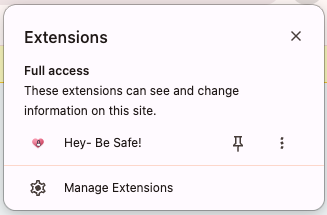
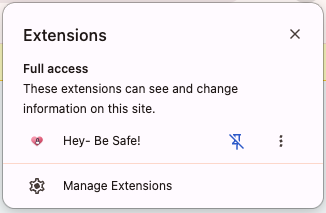
When you pin the extension, you will see the Hey Be Safe lockheart icon next to the puzzle piece. It will stay in your toolbar any time you’re using your browser, one click away from your logins.
3. Sign in to the extension
Click the Hey Be Safe icon in your toolbar and sign in with the account you created in step 1. Your safe syncs down automatically.
4. Autofill websites
Now visit a site you sign in to. Click the username or password field and the Hey Be Safe suggestion appears — pick your login and the fields fill in. When you sign up somewhere new or change a password, Hey Be Safe offers to save it so it’s there next time.
You’re set up on your computer
That’s the core loop: save and fill your passwords as you browse. From here, pick whatever’s next for you — each is its own short guide:
- Use it on your phone. Install the app and turn on autofill so your logins follow you into apps and mobile browsers: Set up autofill on your phone →
- Bring your existing passwords over. Move what’s already saved in Chrome or Google: Switch from Chrome →. Coming from 1Password? Import your 1Password vault →
- Share with people you trust. Create a family to share logins and set up an emergency contact: Create a family and invite people →
- On a Mac? Unlock with your fingerprint in Chrome or Firefox: Unlock with Touch ID on your Mac →
Need help with anything specific? Ask a question →
The onboarding series
Three short videos that take you from no account to a family sharing logins.
-

Part 1 This guide
Onboarding Part 1: Create Your Hey Be Safe Account
-

Part 2
Onboarding Part 2: Import your existing logins from Google Password Manager -
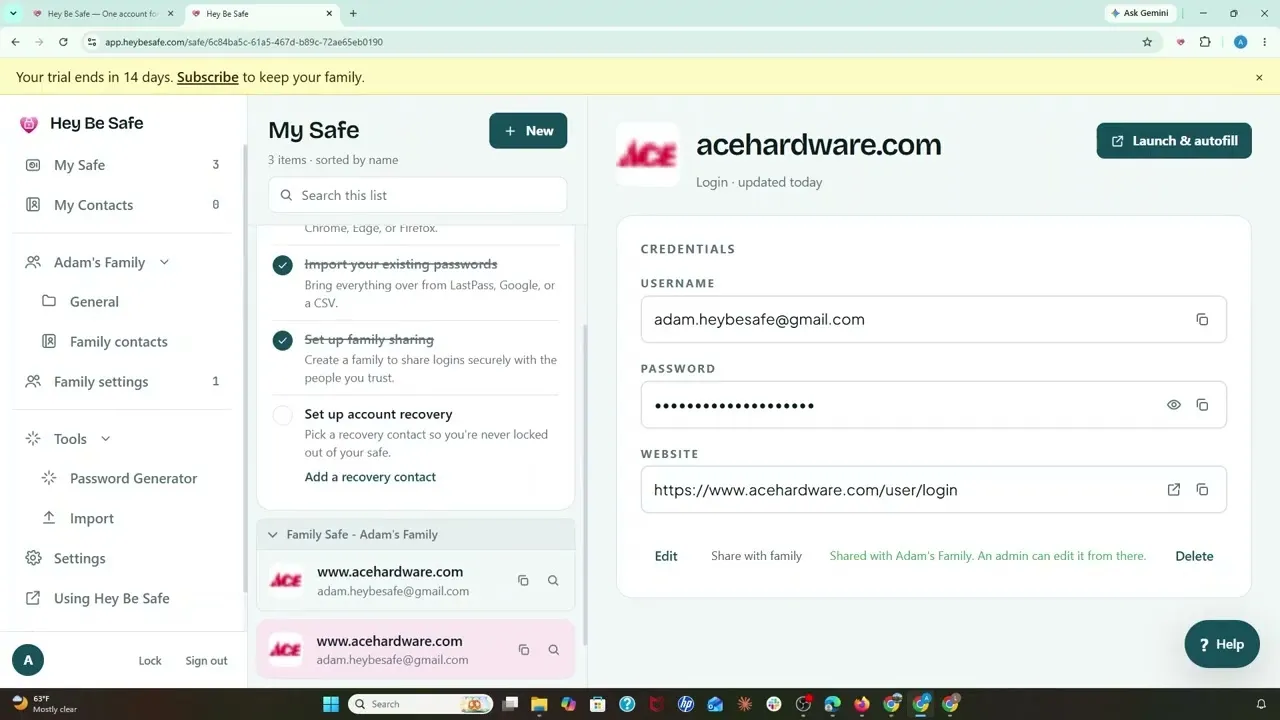
Part 3
Onboarding Part 3: Create Your Family on Hey Be Safe