Getting started
Switch from Chrome's password manager to Hey Be Safe
A step-by-step move from Chrome's built-in password manager to Hey Be Safe — including the autofill switchover most guides skip.
Last updated
Prefer to watch?
This guide as a 3-minute video
Onboarding Part 2: Import your existing logins from Google Password Manager
Nothing loads from YouTube until you press play.
Prefer to print?
This guide as a one-page PDF
Print it out or keep it handy for offline reference.
If you’re still deciding whether a password manager is for you, read What is a password manager and why use one? first — it covers the why. This article covers the how.
Moving from Chrome’s built-in password manager to Hey Be Safe takes about ten minutes. The export-and-import part is straightforward. The step that trips most switching guides up — and the one that determines whether your migration actually sticks — is disabling Chrome’s own password autofill so it doesn’t compete with Hey Be Safe afterwards. We’ll walk through all of it.
1. Export your passwords from Chrome
Open Chrome and go to Settings → Autofill and passwords → Google Password Manager → Settings → Export passwords. Chrome will ask you to confirm with your computer’s login password, then save a CSV file. Pick a location you can find again — your Desktop works.
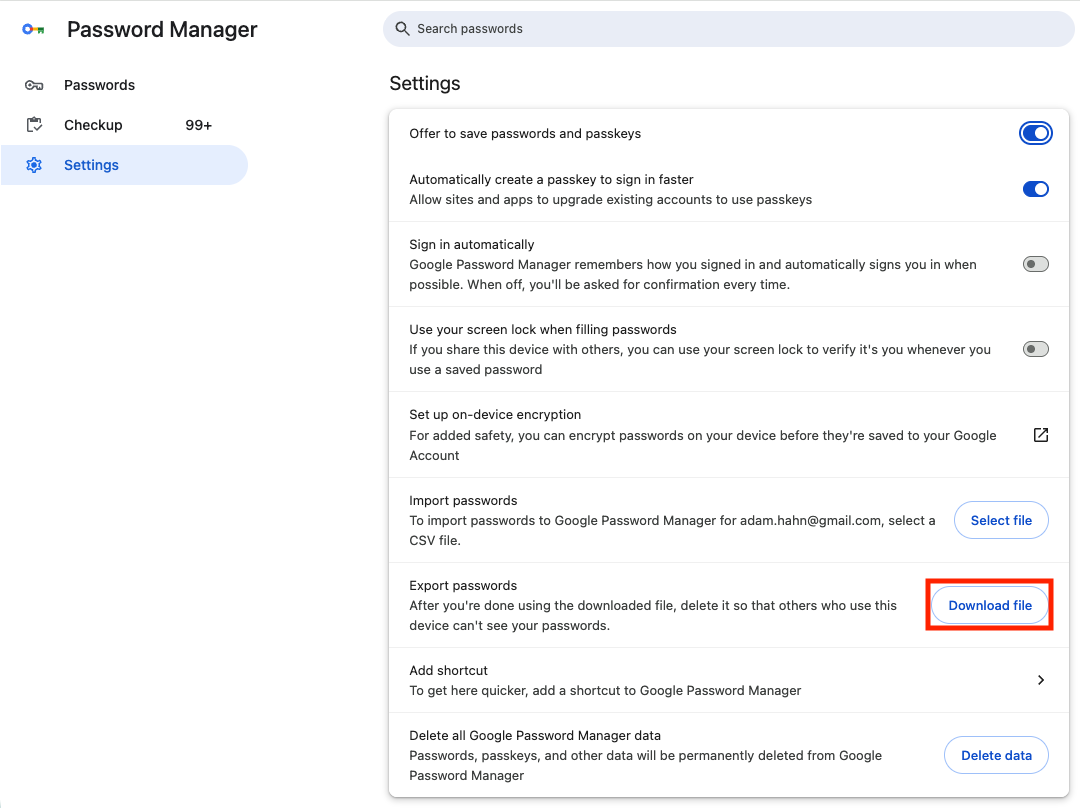
The CSV is plaintext. Don’t email it, don’t drop it in a cloud folder, and don’t leave it sitting around once you’re done — we’ll delete it at the end.
2. Create your Hey Be Safe account
Pick a safe password you can remember but no one can guess. Write it down somewhere physical (a notebook in a drawer is fine) — this is the one password the system can’t recover for you without setting up a recovery contact later.
3. Install the Hey Be Safe browser extension
Visit the Hey Be Safe extension on the Chrome Web Store → and click Add to Chrome. After install, click the puzzle-piece icon in your toolbar and pin Hey Be Safe so it’s always one click away.
Using Edge rather than Chrome? Install from Microsoft Edge Add-ons → instead — it is the same extension, but the Edge store is the right one for your browser.
4. Sign in to the extension
Click the Hey Be Safe icon in your toolbar. Sign in with the account you created in step 2.
5. Import the CSV
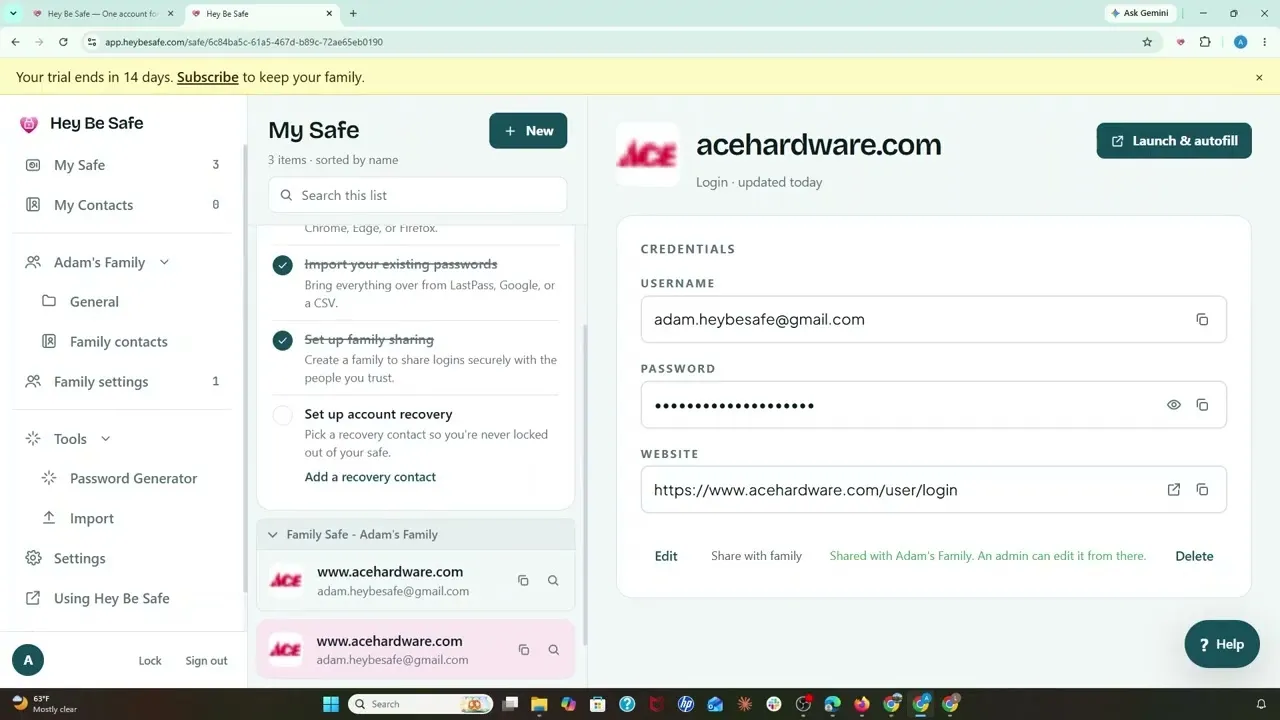
In the extension, open the menu and choose Import. Select Google Password Manager as the source. Upload the CSV from step 1. The wizard previews what’s about to be imported — review the count and any items it couldn’t parse, then confirm.
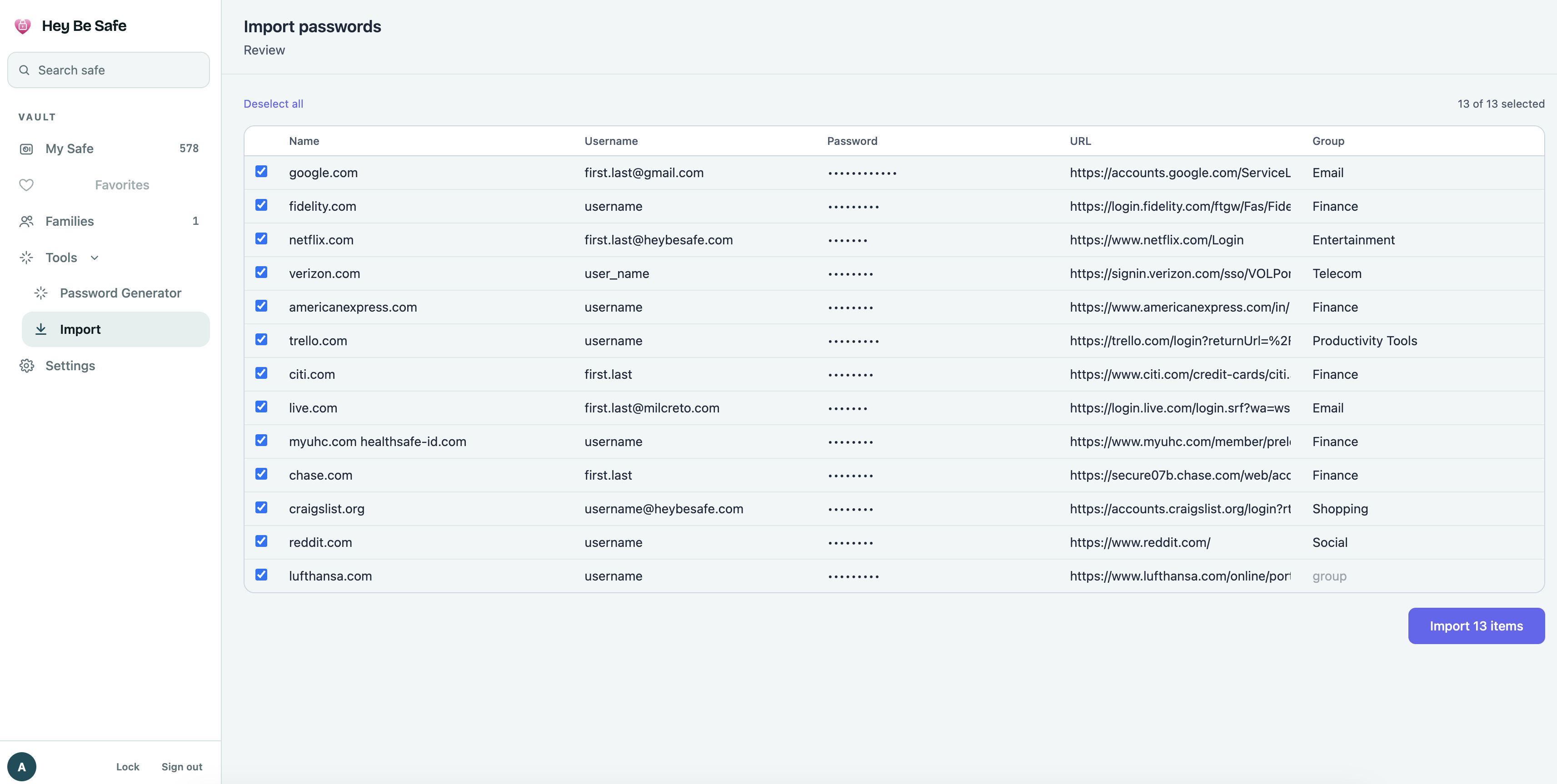
Your passwords are now in Hey Be Safe, encrypted in your safe.
6. Disable Chrome’s built-in password autofill
This is the step that makes the switch stick. Without it, Chrome will keep offering to save and fill passwords alongside Hey Be Safe, you’ll save new accounts to whichever popup you click first, and within a month your credentials will be split across two stores again.
Go back to Chrome Settings → Autofill and passwords → Google Password Manager → Settings:
- Turn OFF “Offer to save passwords”
- Turn OFF “Auto Sign-in”
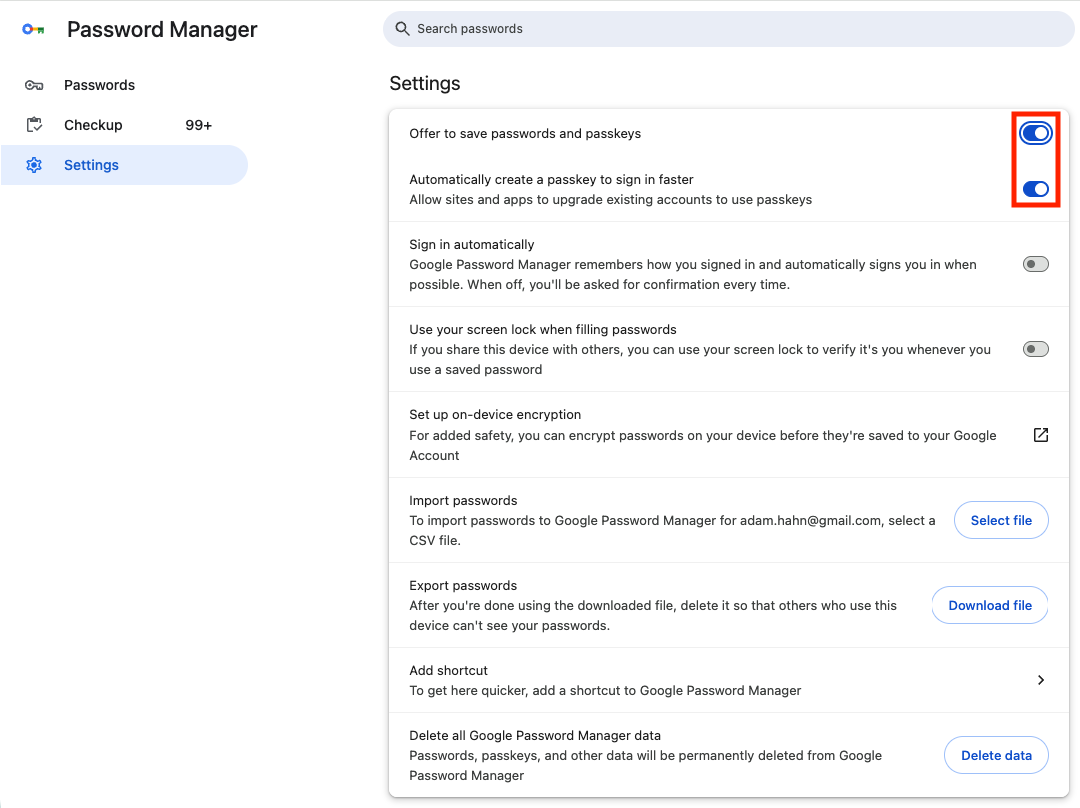
Now Hey Be Safe is the only thing trying to save and fill your passwords.
7. Test autofill on a familiar site
Open any site whose password you just imported — your email provider is a good choice. Click the username field. The Hey Be Safe icon should appear; click it and confirm the suggested login. The fields should fill correctly.
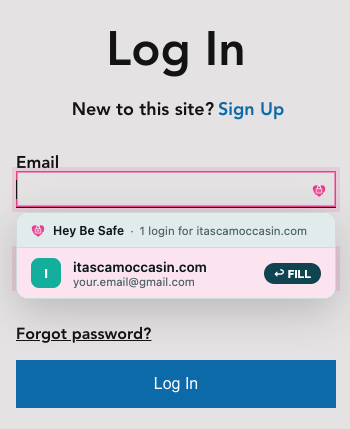
If autofill doesn’t appear, try clicking the Hey Be Safe extension icon and signing in again, then refresh the page.
8. Delete the CSV file
Go to wherever you saved the CSV in step 1 and delete it. Then empty your Trash or Recycle Bin so it’s not just sitting in there.
The file is plaintext copies of every password you own. Leaving it on disk is the kind of thing that turns a careful migration into a careless leak.
9. Optional: delete passwords from Google
Back in Chrome Settings → Autofill and passwords → Google Password Manager, your old saved passwords are still there. They’re not actively in use anymore (you disabled autofill in step 6), but they exist.
If you want a clean break: select all, hit Delete, and confirm. From here on, passwords live only in Hey Be Safe.
You’re done
If you’re stuck on importing, How to import your 1Password vault covers similar ground from a different starting point — useful if you’re also helping someone else switch from a different manager.
Want it on your phone too?
Install the Hey Be Safe Android app from Google Play or the iPhone and iPad app from the App Store and sign in with the same account. Your safe syncs automatically; passwords you saved from the browser are immediately available on mobile. (The extension lives at the Chrome Web Store, or Microsoft Edge Add-ons if you use Edge — same links as step 3, here for easy reference if you’re sharing this page.)
Need help with anything specific? Ask a question →
The onboarding series
Three short videos that take you from no account to a family sharing logins.
-

Part 1
Onboarding Part 1: Create Your Hey Be Safe Account -

Part 2 This guide
Onboarding Part 2: Import your existing logins from Google Password Manager
-
Part 3
Onboarding Part 3: Create Your Family on Hey Be Safe